Links to ratios from another report - settings
If you already have several reports, and in one of them you do not have enough ratios that you have already done in previous reports, the Nemind program has the ability to copy ratios from one report to another.
Let's say you have 2 reports:
SalesMain.npt
SalesSub.npt
Open SalesMain.npt.
From this report, let's move 2 columns to the SalesMain.npt report:
- Polyethylene, Quantity;
- Fact
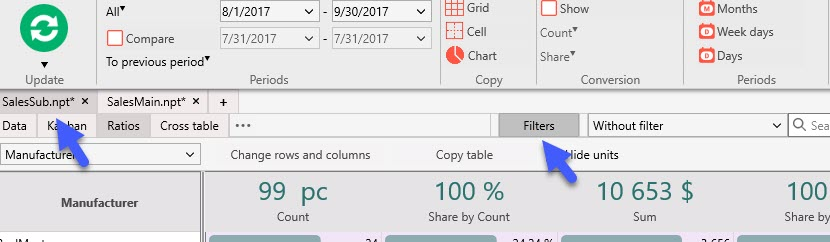
Open the file SalesSub.npt
Open the "Filters and Ratios" functionality with the "Filter" button.
Open the "Ratios" tab
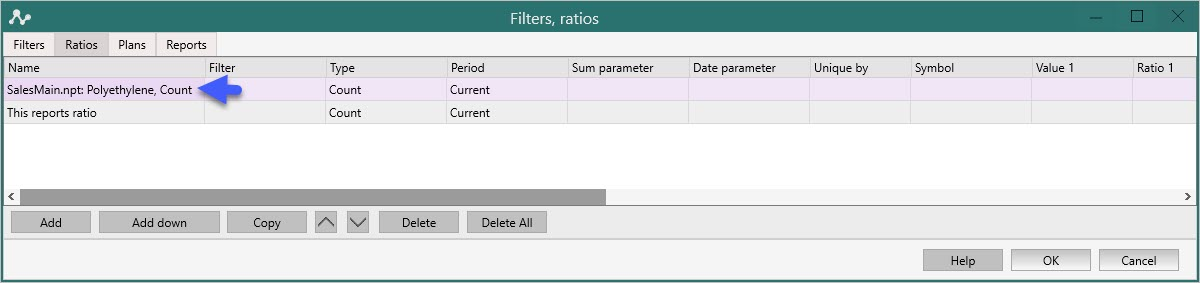
We add a new ratio.
Scroll to the right.
In the column "From another file" select the required ratio from the list of ratios of another report.
The program will automatically assign the name of the ratio in this report
Add the second ratio in the same way.
Click "OK".
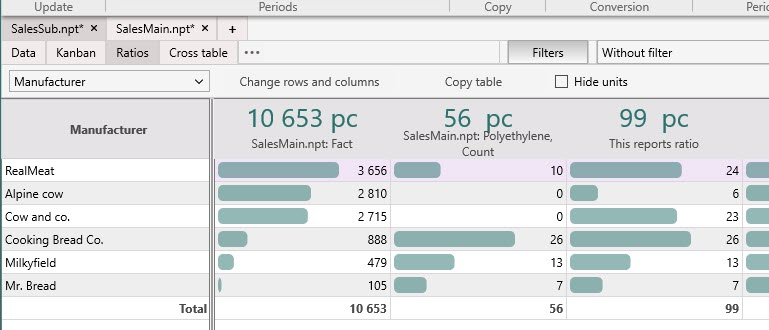
We look at the "Ratios" tab of the main menu.
Similarly, you can combine ratios from different entities / reports for Bitrix24 or AMOCRM.
1. Open the reports you need. Let's say Deals and Calls.
Save both reports in one folder.
Let's add these ratios to the "tast Deals.npt" report
Open the "test Deals" report and go to the "Filters and Ratios" functionality.
Add a New ratio and scroll to the right.
Add the required ratio: "Calls".
Add a New ratio again and add the Total Duration ratio.
For the duration, let's adjust the ratio as shown in the screenshot:
Type: Sum
Click "Ok".
See the report in the "Ratios" tab of the main menu.