General description of custom filters
Custom filters are filters that are created by the user to obtain a specific list of values that satisfy a specific request and task.
Custom Filters allow you to customize custom measures and display filtered values in them. A custom ratio can link to any filter, and multiple custom ratios can link to the same filter to optimize filtering speed.
Custom filters are needed in order to use not all column data when calculating ratios, but only those that correspond to the task at hand (for example, only this year / week, or only in a certain numerical range, only a certain product, etc.)
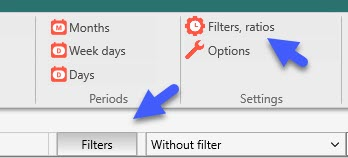
Custom filters are configured in the window, which is invoked by clicking on the "Filters" button.
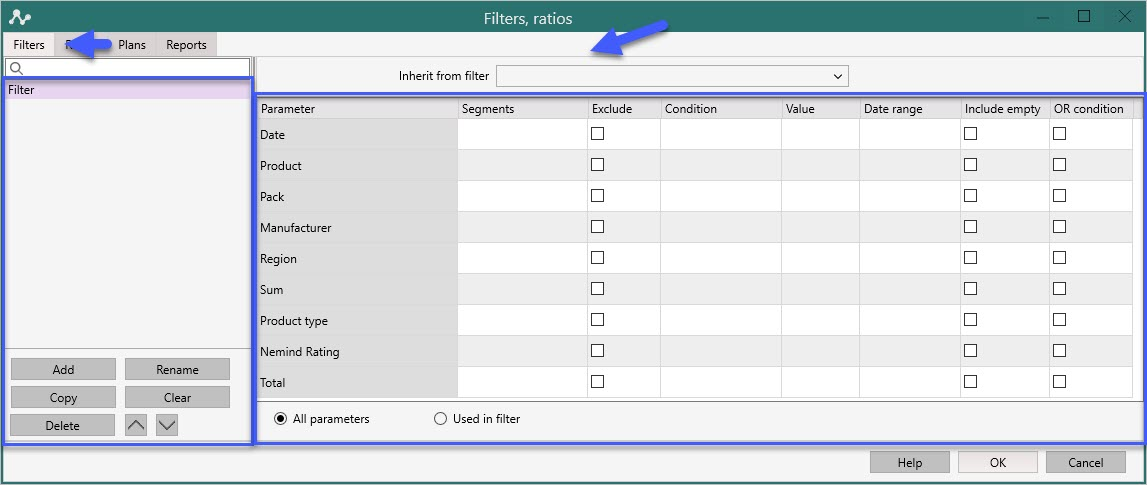
Look at the "Filters" tab closer
The Filters panel consists of 2 parts:
On the left is the filter selection window. Here you can add, remove, rename or clear any filter using the appropriate buttons:
Add - will add a New filter
Delete - deletes the selected filter
Clear - clears the selected filter
Rename - allows you to rename the selected filter
Copy - copy selected filter
By default, there is already one Filter. It is empty and it is advisable not to change it. Use it for training and trial.
On the right is the filter settings window, which has a tabular view and consists of columns:
1. Section - contains the names of all selected columns of the source table;
There are several types of incisions:
- text;
- numeric;
- date type.
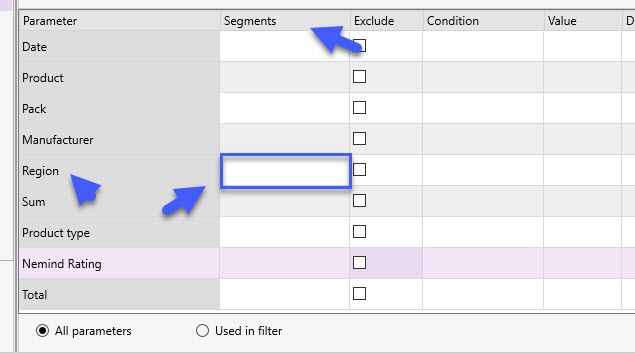
2. Segments - contain a list of values that each column of the source table contains;
You can select the desired segment as follows:
(1) select the required section and click with the mouse in the "Segment" column opposite the selected section;
(2) put a check mark on the desired cuts;
(3) click the "Apply" button.
3. Exclude - here it is necessary to tick the Condition that is Excluded from the calculations.
For example, the screenshot will exclude all Sum values that are Greater than 1000.00. You can also exclude unnecessary Segments.
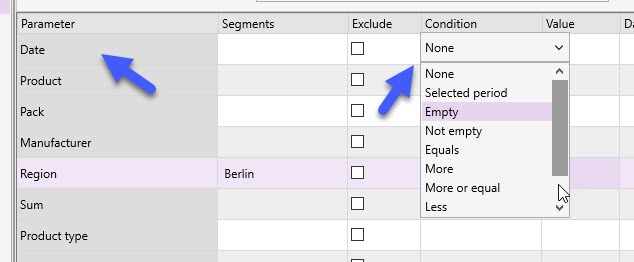
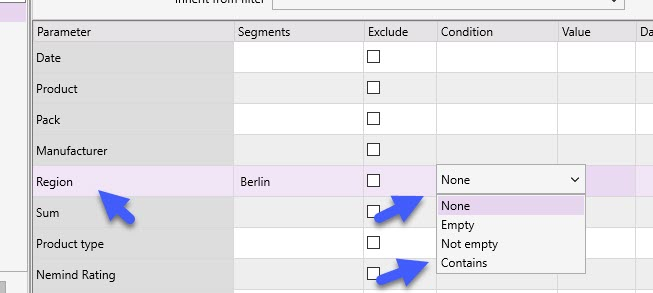
4. Condition - a column in which the condition for different type is set:
Select the required Condition:
For date or sum
for others
5. Value - a column in which the value for Aspects of the number type is entered, which must satisfy the given Condition:
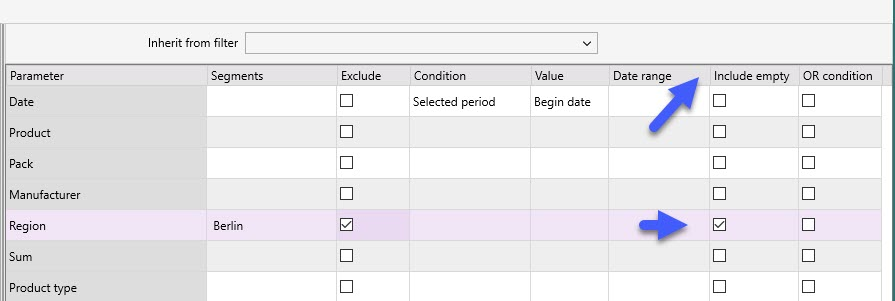
6. Include empty - here you can tick off those Aspects for which you want to count empty values.
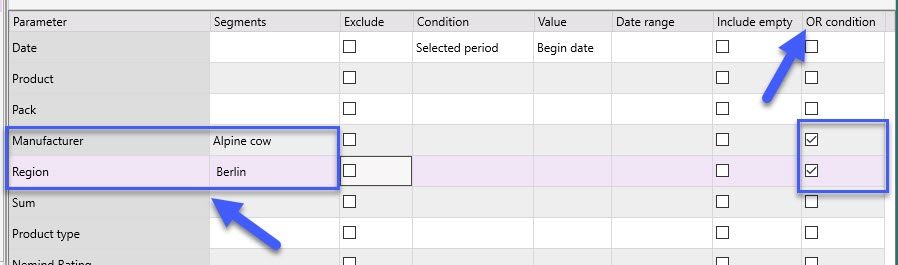
7. Column "OR condition":
Selects the Apline cow segment from the Manufacturer view and Berlin segment from the Ragion view
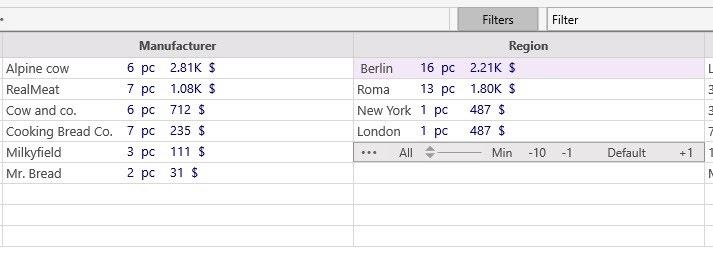
In the Kanban tab, the work of this filter looks like this:
Here the entire segment "Alpine cow" is selected: therefore, in the column "Manufacturer"
And also the "Berlin" segment: therefore, the "Product" column remains the "Manufacturer" segment.