Automatic sendind emails
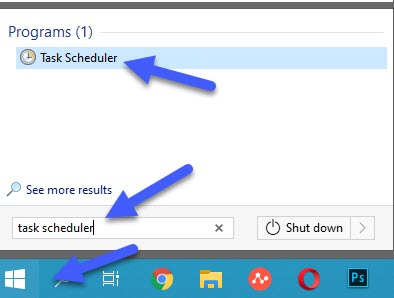
Find Task Scheduler by clicking Start button.
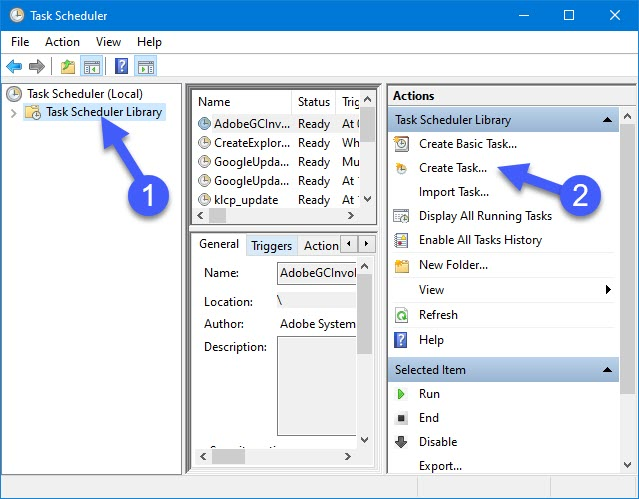
In the "Task Scheduling" select "Task Scheduler library" in the left block and select "Create task ..." in the right block.
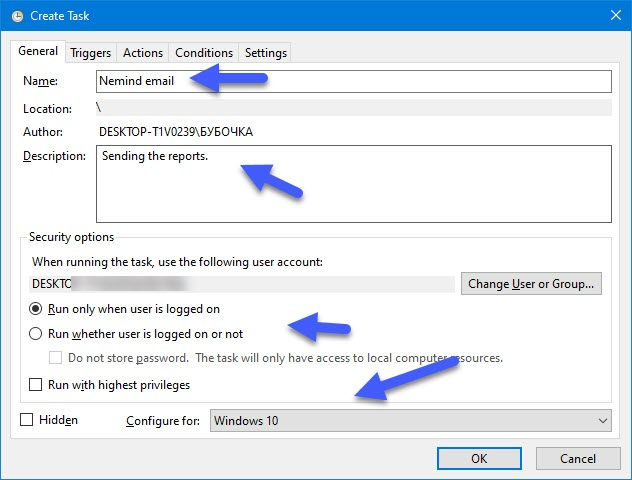
Enter a Name, Description, Windows version and other parameters in the General tab of the New Task window.
The name is the name of the task: for example, "E-mail Company "EVERYDAY" or "E-mail Company "everyweek"
Description - a description of the task, it is not necessary to enter it.
Configure for: - Specify your Windows version. In this case, Windows 10.
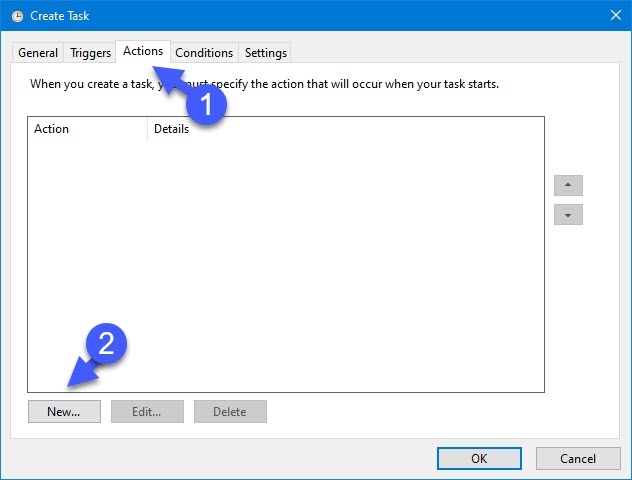
Click the "New ..." in the "Actions" tab.
In the next window, configure the parameters as follows:
1 - Action: "Start a program"
2 - Program or script: - path to the place where the app Nemind is installed.
"C:\Program Files (x86)\Nemind\Nemind.exe"
3 - Add arguments: - a command that will call the program and send reports to the required addresses.
"d:\Work\!Neminds reports \Deals.npt" /sendemail user1@company.com;user2@company.com "Everyday Nemind report"
where:
"d:\Work\!Neminds reports \Deals.npt" - a set of files separated by semicolons
/sendemail - an argument that means the program will open files, collect analytics and send an email and then close.
user1@company.com;user2@company.com emails separated by semicolons
IMPORTANT: there must be no spaces between addresses, i.e .:
user1@company.com;user2@company.com - you need to write like this
user1@company.com; user2@company.com - you can't write like that.
"Everyday Nemind report" - title of the report for email (not necessary)
4 - click "Ok".
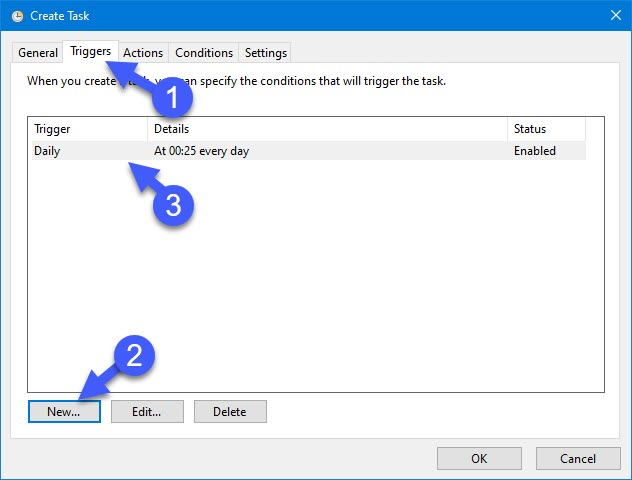
Go to the "Triggers" tab and configure the period when you want to receive reports:
The email of reports can be configured daily, weekly, monthly and once.
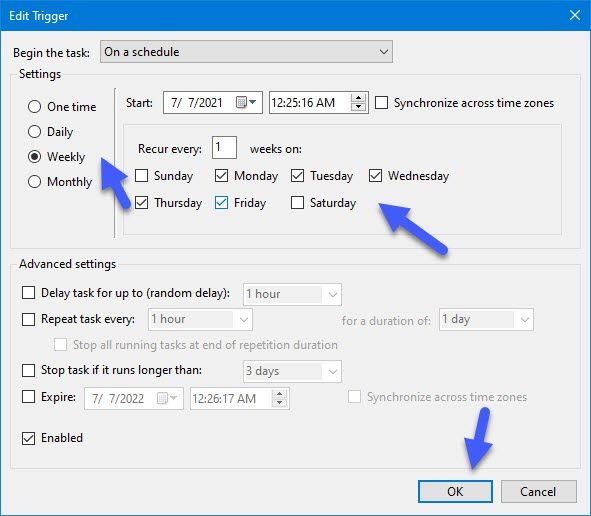
In order to send reports on weekdays, you must select the "Weekly" parameter and check the boxes on weekdays:
You can also set up sending the report weekly, once a week, for example, on Friday evening
You can set an expiration date for the Task and Stop the task after a certain number of days.
Click the "Ok" button.