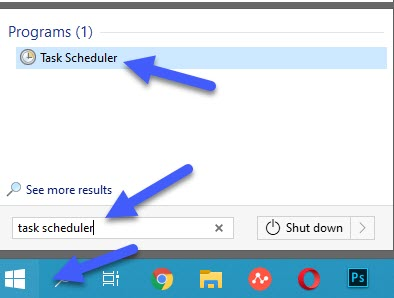
Find Task Scheduler by clicking Start button.
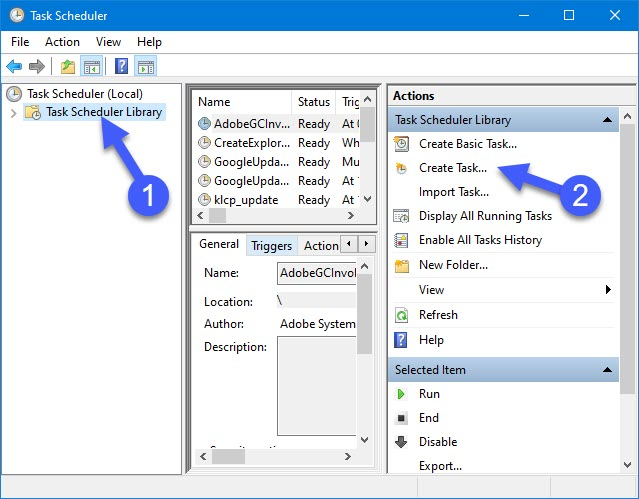
In the "Task Scheduling" select "Task Scheduler library" in the left block and select "Create task ..." in the right block.
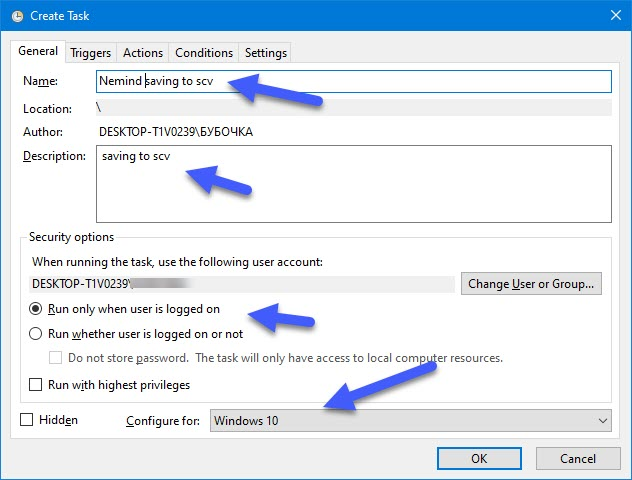
Enter a Name, Description, Windows version and other parameters in the General tab of the New Task window.
The name is the name of the task: for example, "Saving "Deals raports" or "Saving Deals "everyweek"
Description - a description of the task, it is not necessary to enter it.
Configure for: - Specify your Windows version. In this case, Windows 10.
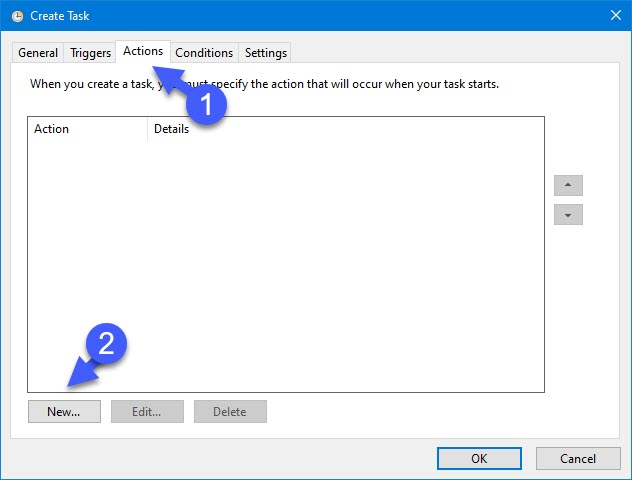
Click the "New ..." in the "Actions" tab.
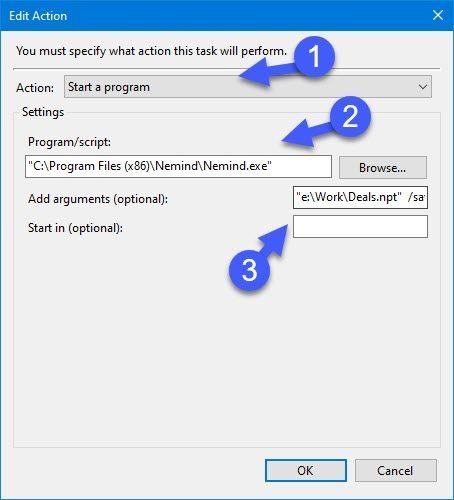
In the next window, configure the parameters as follows:
1 - Action: "Start a program"
2 - Program or script: - path to the place where the app Nemind is installed.
"C:\Program Files (x86)\Nemind\Nemind.exe"
3 - Add arguments: - a command that will call the program and send reports to the required addresses.
"e:\Work\Deals.npt" /savetocsv "e:\DealsSuccessful.csv"
where:
"e:\Work\Deals.npt" - the file you need to save to CSV
/savetocsv - an argument that means the program will open file and save the "Ratios" tab to csv.
"e:\DealsSuccessful.csv" - the name of the saved file and its future location
4 - click "Ok".
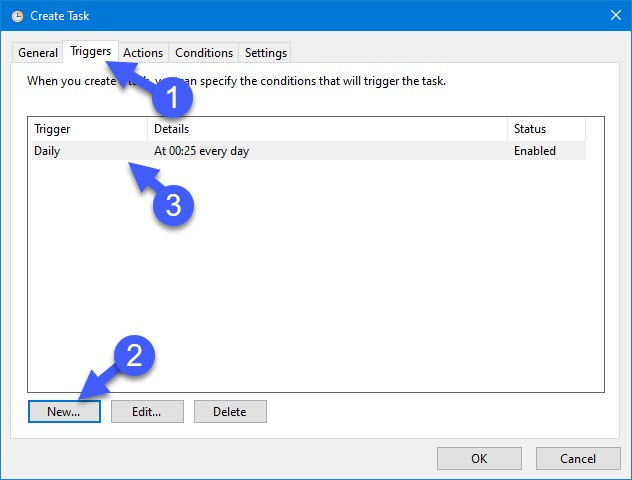
Go to the "Triggers" tab and configure the period when you want to receive the file:
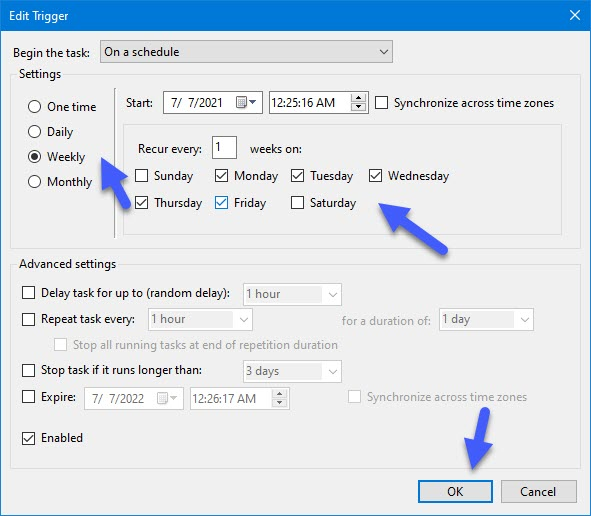
The csv can be configured daily, weekly, monthly and once.
In order to send reports on weekdays, you must select the "Weekly" parameter and check the boxes on weekdays:
You can also set up sending the report weekly, once a week, for example, on Friday evening
You can set an expiration date for the Task and Stop the task after a certain number of days.
Click the "Ok" button.
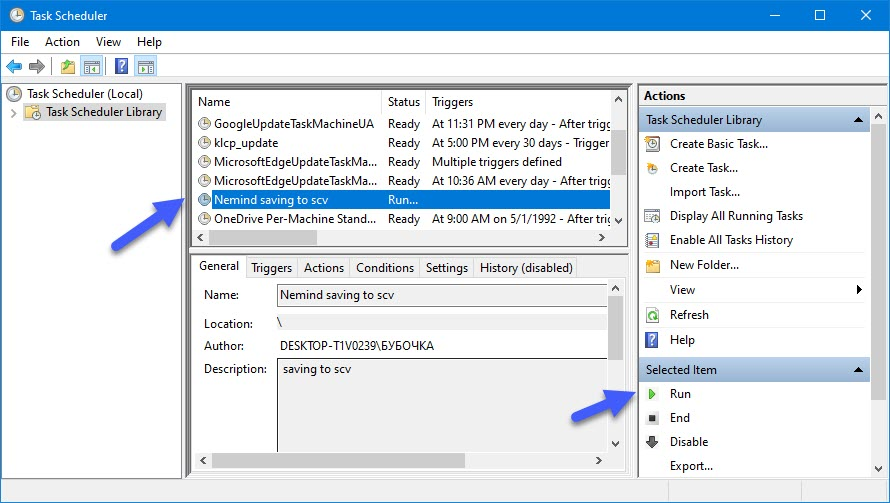
5. test saving to csv